

Nodes are an important part of the Monero network infrastructure. Nodes simply store a copy of the blockchain. They can optionally be configured to share this information with other nodes and clients. Running a node is the only way to get the highest level of privacy and security when connecting to the Monero network. In Monero, the program for running a full node is called the “daemon”.
Running a Monero node uses meaningful disk space, bandwidth, and disk I/O. Currently, it is better to think in terms of unpruned versus pruned nodes, rather than a single “blockchain size” number.
Recommended default: run a pruned node unless you explicitly need full archival history. Pruning saves a large amount of disk space while keeping the same consensus validation security (a pruned node still verifies blocks and rules locally).
Initial sync time varies widely with SSD speed and available I/O. A fast SSD and stable connection matter more than CPU for most setups. Bandwidth usage also varies depending on how many peers you serve and whether you accept inbound connections. For tips to improve the initial time, read our How to speed up Initial Monero Blockchain Sync guide.
Many people run the daemon from a terminal interface, especially if they are running a VPS. You may also want to do this if you want to stay in-sync without keeping the wallet open.
This guide will cover using Windows, Mac, and Linux and assumes you have a 64-bit operating system.
If you are running the official Monero GUI, it will prompt you to run the daemon locally by default.
This is the same as running a full node. Specify “localhost” as the daemon address in settings and click “start daemon”.
You can manually specify daemon options in the “daemon startup flags” if desired e.g., --prune-blockchain. The GUI should start and stop the daemon process automatically.
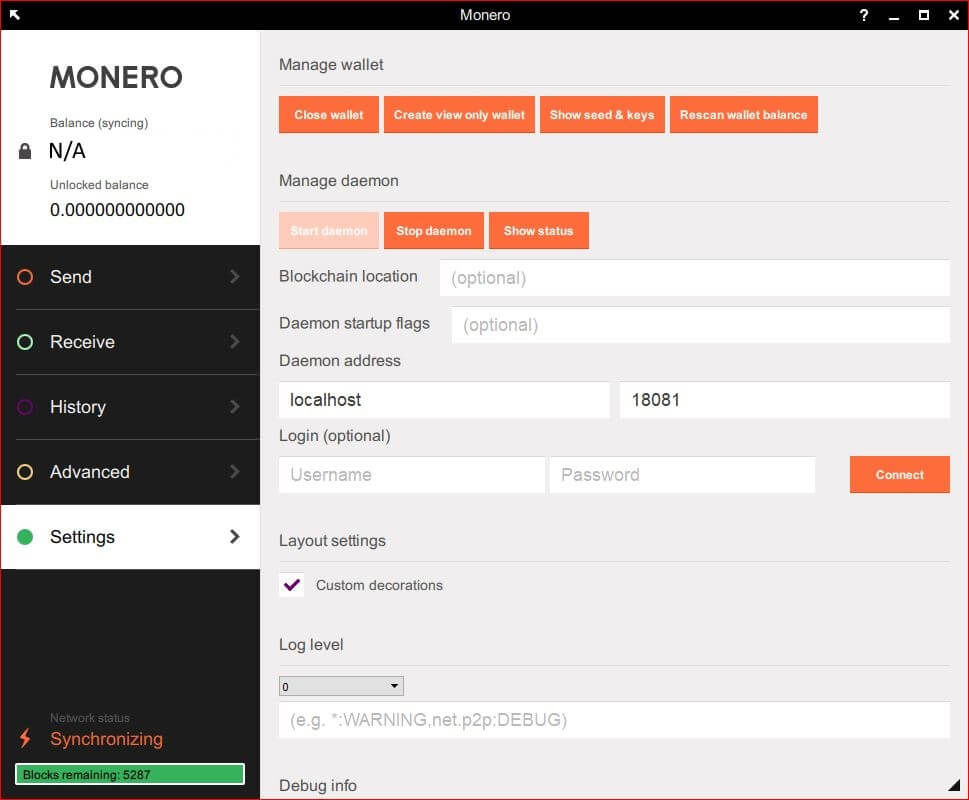
Note: the Monero GUI changes over time, so button names and settings layout may differ slightly by version.
For advanced configuration, the underlying daemon is still monerod, and the authoritative
reference for flags is the
monerod flag reference.
Download the latest Monero software from the official Monero downloads page. For security, verify the binary before running it. The Monero Project provides a Windows verification guide.
Extract the contents of the .zip file that is downloaded. To do this, you can simply double-click on the .zip file, click on the extract tab in the ribbon, and then the “extract all” option. Choose a folder to extract these to, making sure to remember it.
You can run the daemon with all the default options by simply running “monerod.exe”. If you would like to include options, it’s best to create a batch file.
To create a batch file, open notepad by searching for it in the start menu. Type in the following:
monerod.exe. Eg: monerod.exe --prune-blockchain --sync-pruned-blocks.
Save the file in the same folder that monerod.exe is located in. When saving, change the “save as type” to “all files (*.*)”.
Name the file “Run monerod.bat”. The name can vary, but make sure that it ends in .bat.
You can run the daemon by double-clicking on the created .bat file. This will; run monerod.exe with the chosen options.
Download the latest Monero software from the official Monero downloads page.
Extract the contents of the downloaded file, and open a terminal by searching for it in applications. Navigate to the extracted file location.
If you saved it to Documents, for example, use:
Download Monero from the official Monero downloads page. Before running any downloaded binary, follow the Monero Project’s verification guidance: Verify Monero binaries.
The --prune-blockchain option reduces disk usage while keeping full validation security.
(Pruning removes redundant historical data; it does not reduce privacy or consensus correctness.)
If you prefer the original “keep it running after disconnecting” approach, screen still works.
Many modern servers use systemd services, but screen remains a practical option for quick setups.
Detach from screen with: Ctrl + a then d. Reattach with:
On modern Linux systems, running monerod as a systemd service is the preferred
approach for long-running nodes. It ensures the daemon starts on boot, restarts on failure,
and integrates cleanly with system logs.
This approach is recommended for VPS and dedicated servers. For quick or temporary setups,
screen remains acceptable.
Replace YOUR_LINUX_USERNAME with the user running the node and adjust the
ExecStart path if needed.
This section applies to all operating systems. It explains how the
monerod daemon exposes network services (P2P and RPC) regardless of whether
you are running Linux, Windows, or macOS. Firewall commands shown later are OS-specific examples.
There are two different “network surfaces” to think about:
The Monero Project documents daemon flags (including RPC restriction options) in the monerod reference. In general, keep RPC bound to localhost unless you have a specific need.
Use a restricted RPC interface and keep your unrestricted control RPC private. One common approach is:
The restricted RPC port is intended for wallet-style queries and reduces risk compared with exposing the default unrestricted RPC. Common misunderstanding: “any RPC is safe if I set a password” — a password helps, but the safer baseline is not exposing unrestricted RPC at all.
If you are using ufw on a VPS and you choose to open inbound ports, a minimal example is:
Below are some popular daemon options. Please ignore all brackets [] and the help text after #. You will need to replace these with your own values.
Important: treat RPC settings as security-sensitive. The safest default is to bind RPC to
127.0.0.1 (localhost). Only bind RPC to external interfaces if you understand the trade-offs and
are using restricted RPC and firewall rules.
 monero.how